1. PowerShell 실행
Windows 시작 메뉴에서 PowerShell 또는 Windows Terminal을 실행합니다.
일반 권한으로 설치해도 되지만, 초기 실행 과정에서 Windows Sandbox 구성을 위해 관리자 권한 승인 창이 나타날 수 있습니다.
2. Codex CLI 설치
PowerShell에서 아래 명령어를 실행합니다.
powershell -ExecutionPolicy ByPass -c "irm https://chatgpt.com/codex/install.ps1 | iex"설치 과정
PS C:\Users\User> powershell -ExecutionPolicy ByPass -c "irm https://chatgpt.com/codex/install.ps1 | iex"
==> Updating Codex CLI
==> Detected platform: Windows (x64)
==> Resolved version: 0.138.0
==> PATH is already configured for future PowerShell sessions.
==> Current PowerShell session: codex
==> Future PowerShell windows: open a new PowerShell window and run: codex
Codex CLI 0.138.0 installed successfully.
Start Codex now? [y/N]: y

---

  Welcome to Codex, OpenAI's command-line coding agent

  Sign in with ChatGPT to use Codex as part of your paid plan
  or connect an API key for usage-based billing

> 1. Sign in with ChatGPT
     Usage included with Plus, Pro, Business, and Enterprise plans

  2. Sign in with Device Code
     Sign in from another device with a one-time code

  3. Provide your own API key
     Pay for what you use

  Press enter to continue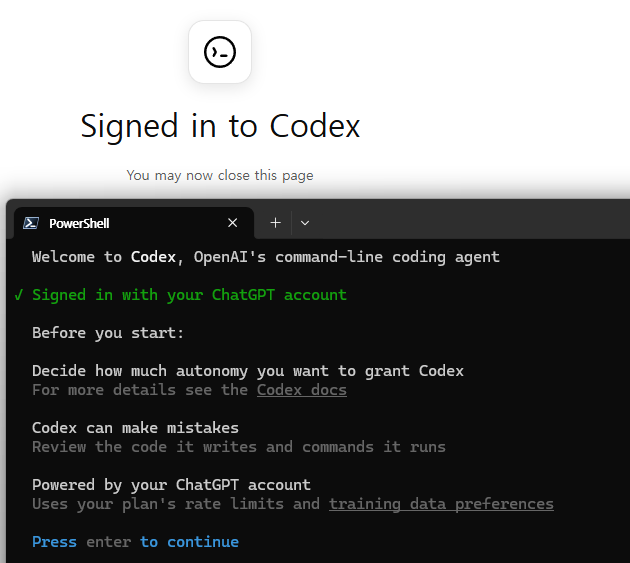
  Welcome to Codex, OpenAI's command-line coding agent

✓ Signed in with your ChatGPT account

> You are in C:\Users\User

  Do you trust the contents of this directory? Working with untrusted contents comes with higher risk of prompt
  injection. Trusting the directory allows project-local config, hooks, and exec policies to load.

› 1. Yes, continue
  2. No, quit

  Press enter to continue and create a sandbox...

---

╭───────────────────────────────────────╮
│ >_ OpenAI Codex (v0.138.0)            │
│                                       │
│ model:     gpt-5.5   /model to change │
│ directory: ~                          │
╰───────────────────────────────────────╯

  Tip: GPT-5.5 is now available in Codex. It's our strongest agentic coding model yet, built to reason through large
  codebases, check assumptions with tools, and keep going until the work is done.

  Learn more: https://openai.com/index/introducing-gpt-5-5/


  Set up the Codex agent sandbox to protect your files and control network access. Learn more
  <https://developers.openai.com/codex/windows>

  1. Set up default sandbox (requires Administrator permissions)
  2. Use non-admin sandbox (higher risk if prompt injected)
› 3. Quit

  Press enter to confirm or esc to go back
설치가 끝나면 버전을 확인합니다.
codex --versionPS C:\Users\User> codex --version
codex-cli 0.138.0명령어를 찾을 수 없다는 메시지가 나오면 PowerShell 창을 닫고 새로 실행한 뒤 다시 확인합니다.
3. 작업할 프로젝트 폴더로 이동
예를 들어 기존에 작업하던 FastAPI 프로젝트가 C:\Devops\APIMtoAI\backend에 있다면 다음과 같이 이동합니다.
cd C:\Devops\APIMtoAI\backend새 테스트 폴더를 만들어 시작해도 됩니다.
mkdir C:\Devops\codex-test
cd C:\Devops\codex-test
4. Codex 실행 및 로그인
프로젝트 폴더에서 실행합니다.
codex> You are in C:\Users\User\Desktop\Codex
Do you trust the contents of this directory? Working with untrusted contents comes with higher risk of prompt
injection. Trusting the directory allows project-local config, hooks, and exec policies to load.
› 1. Yes, continue
2. No, quit
Press enter to continue and create a sandbox...
처음 실행하면 로그인 방식을 선택하는 화면이 나타납니다.
Sign in with ChatGPT를 선택하면 브라우저가 열립니다. 현재 사용 중인 ChatGPT 계정으로 로그인하면 됩니다. 최선생은 ChatGPT Plus 플랜이므로 별도 API Key 없이 구독 범위 내에서 사용할 수 있습니다. API Key 로그인도 가능하지만, 이 경우 ChatGPT 플랜 사용량이 아니라 OpenAI API 종량제 비용이 별도로 청구됩니다. (OpenAI 개발자)
5. 첫 번째 테스트
Codex 화면에서 아래처럼 입력합니다.
현재 폴더의 파일 구조를 확인하고 프로젝트의 역할을 요약해줘.
파일은 수정하지 말고 분석 결과만 알려줘.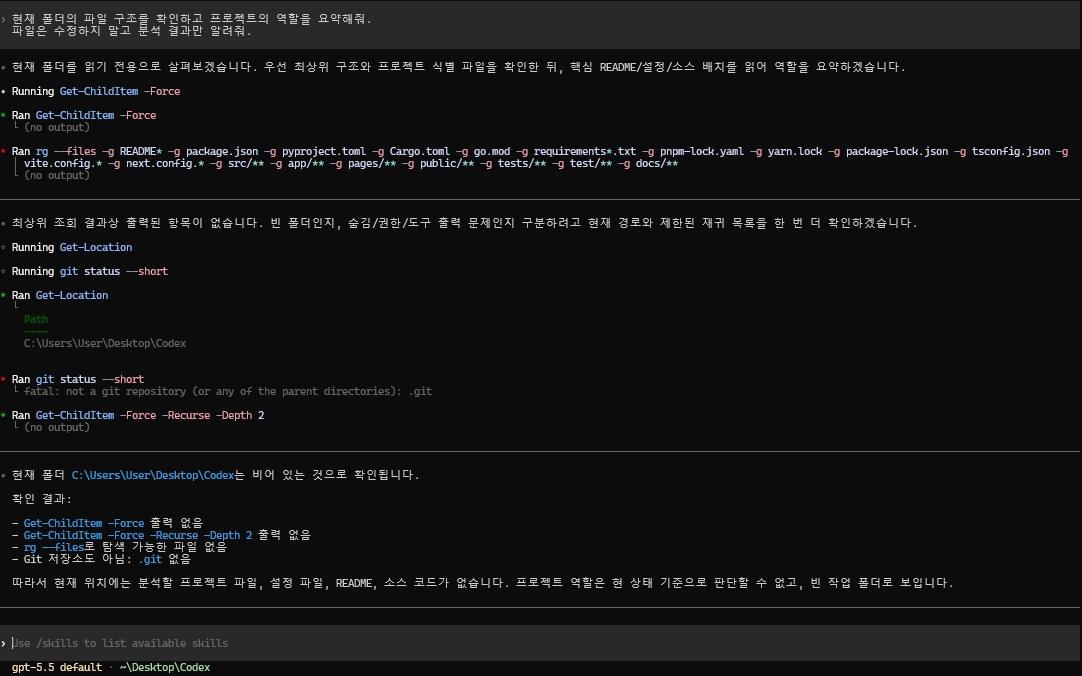
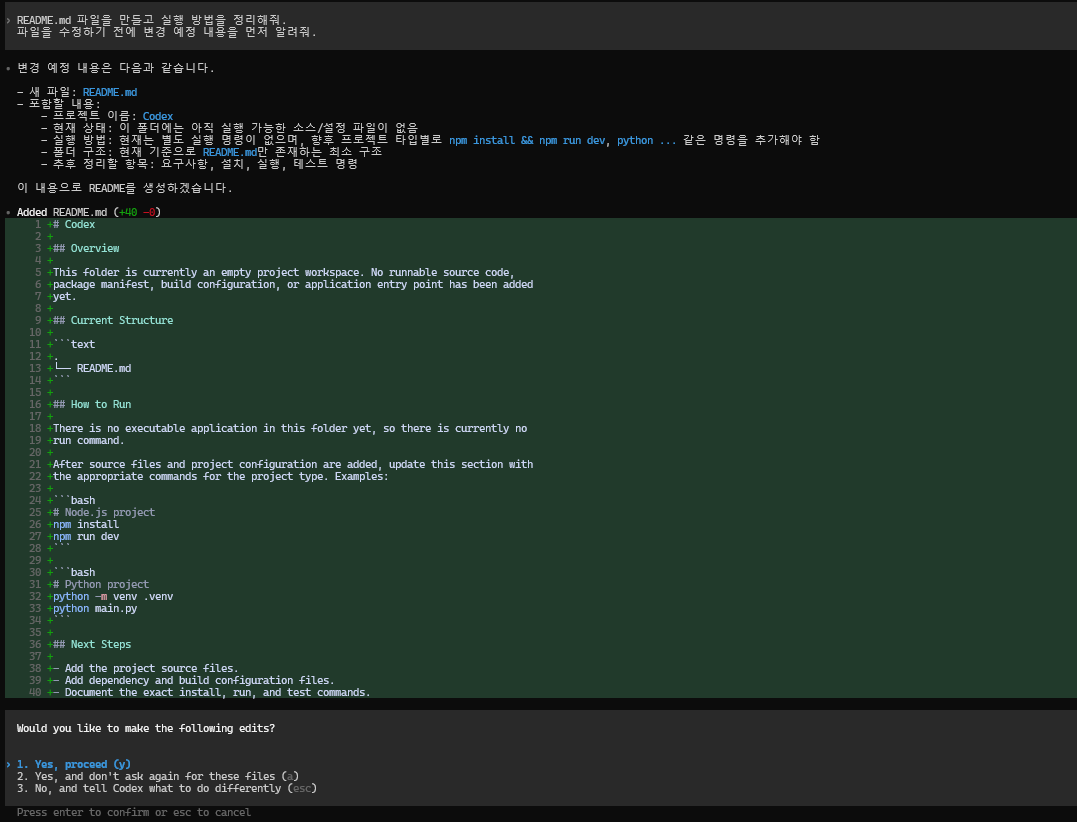
코드 수정까지 맡길 때는 다음처럼 지시할 수 있습니다.
README.md 파일을 만들고 실행 방법을 정리해줘.
파일을 수정하기 전에 변경 예정 내용을 먼저 알려줘.
Codex가 파일 수정이나 명령어 실행 승인을 요청하면 내용을 확인하고 허용 여부를 선택합니다.
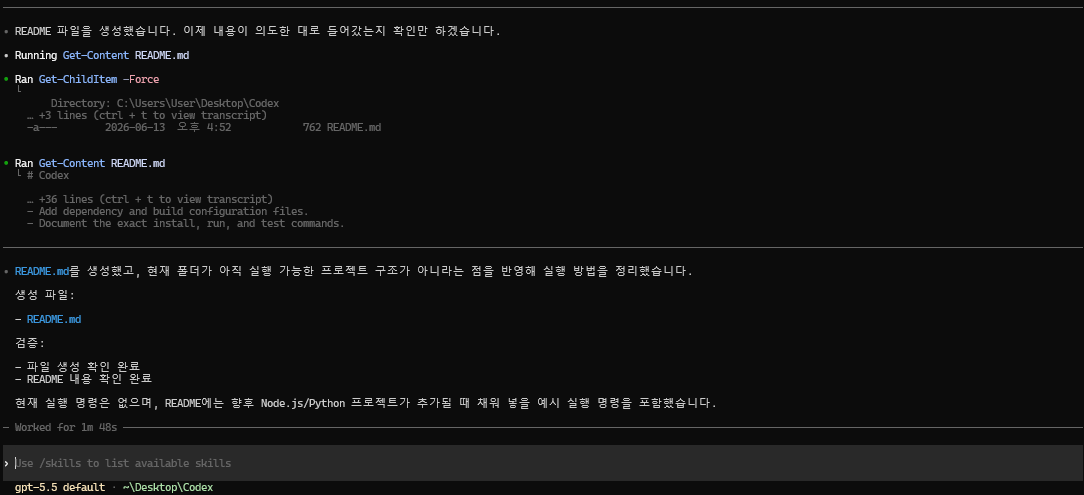
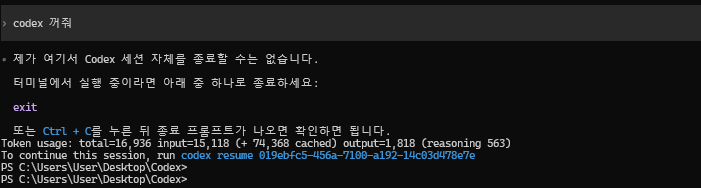
codex 끌 때
6. 이후 다시 실행하는 방법
매번 프로젝트 폴더로 이동한 뒤 codex만 실행하면 됩니다.
cd C:\Devops\APIMtoAI\backend
codex
로그인 정보는 로컬에 저장되므로 일반적으로 브라우저 로그인을 반복할 필요는 없습니다. 저장된 인증 파일은 비밀번호처럼 취급해야 하며 GitHub 저장소에 올리면 안 됩니다. (OpenAI 개발자)
7. 버전 업데이트
최신 버전으로 업데이트할 때도 최초 설치 명령어를 다시 실행합니다.
powershell -ExecutionPolicy ByPass -c "irm https://chatgpt.com/codex/install.ps1 | iex"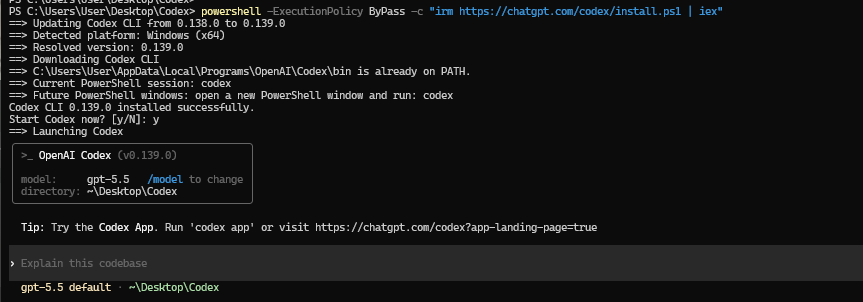
Windows에서 오류가 발생하는 경우
Windows에서는 Native Sandbox 방식이 기본이며 성능도 가장 좋습니다. Windows 11이 권장되고, 회사 보안정책으로 Sandbox 생성이나 방화벽 설정이 막히면 오류가 발생할 수 있습니다. (OpenAI 개발자)
Native 방식이 정상 동작하지 않거나 Linux 기반 개발 환경을 사용할 예정이라면 WSL2 방식으로 설치합니다.
관리자 PowerShell:
wsl --install
wsl
Ubuntu 터미널이 열리면:
curl -fsSL https://chatgpt.com/codex/install.sh | sh
codex
WSL2에서 프로젝트를 작업할 때는 /mnt/c 아래보다 Linux 홈 디렉터리 아래에 저장하는 편이 성능상 유리합니다. (OpenAI 개발자)
mkdir -p ~/code
cd ~/code
참고: GUI 앱도 있음
명령어 방식이 아니라 일반 프로그램 형태를 선호하면 Codex App for Windows도 사용할 수 있습니다. 앱에서는 프로젝트 선택, Git 변경사항 검토, 여러 작업 병렬 실행 등을 화면에서 관리할 수 있습니다. (OpenAI 개발자)

https://apps.microsoft.com/detail/9PLM9XGG6VKS?hl=neutral&gl=KR&ocid=pdpshare

참고2: IDE VSCode
IDE 개발환경에 맞게 VSCode 확장으로 이용가능
VS Code에서 설치 방법
- VS Code 좌측의 Extensions 메뉴를 엽니다.
- 검색창에 Codex를 입력합니다.
- 게시자가 OpenAI인지 확인합니다.
- Codex 확장을 설치합니다.
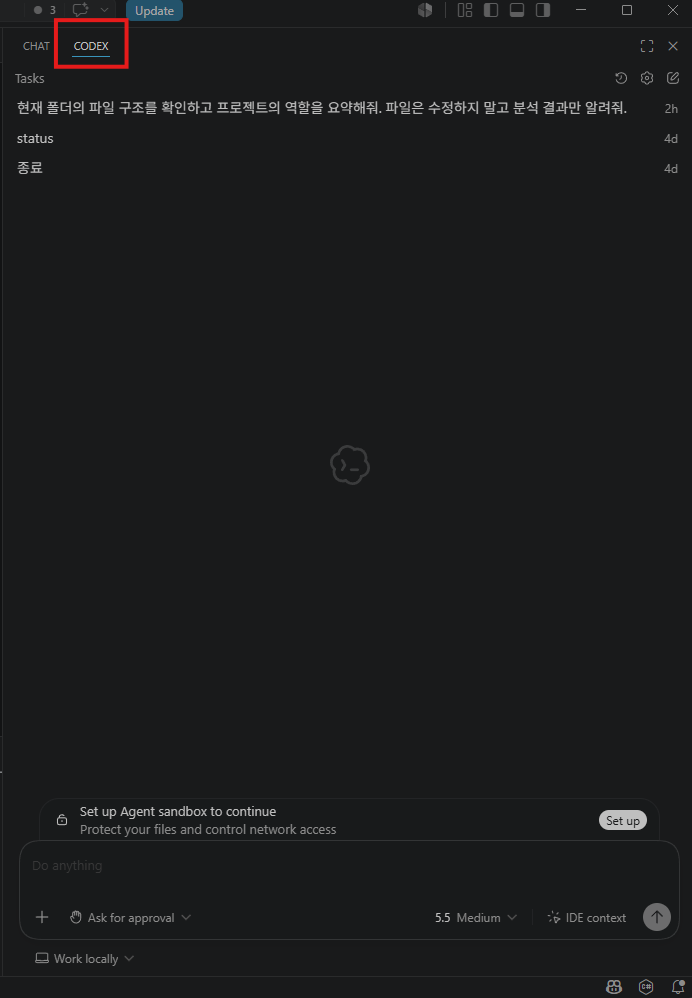
- 설치 후 좌측 사이드바의 Codex 아이콘을 누르고 ChatGPT 계정으로 로그인합니다.
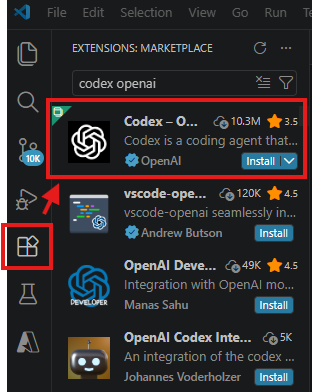
공식 문서의 VS Code 다운로드 버튼을 이용해도 됩니다. 유사한 이름의 비공식 확장이 있을 수 있으므로 게시자를 반드시 확인하는 것이 좋습니다.
참고 문서 URL
- OpenAI Codex CLI 공식 문서
- OpenAI Codex 인증 방식
- OpenAI Codex Windows 가이드
- OpenAI Codex 공식 GitHub 저장소
- OpenAI Codex App 가이드
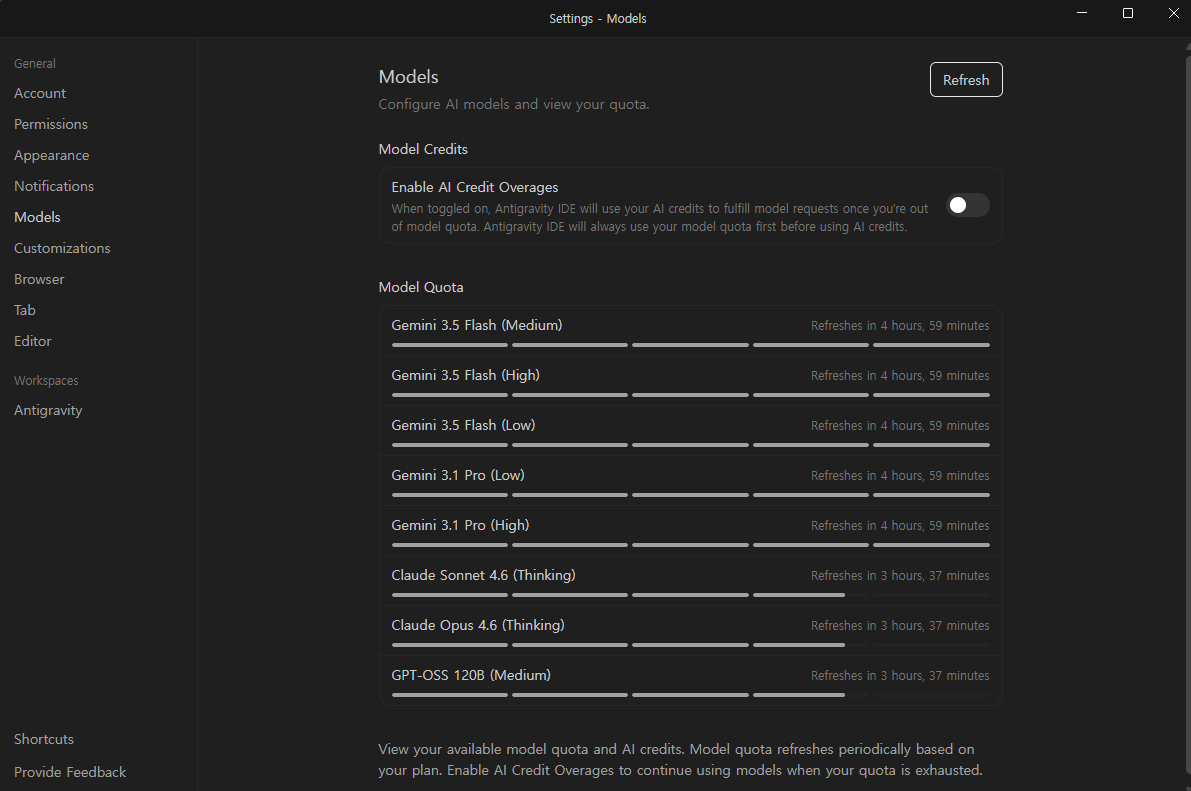
Google의 Antigravity도 써보고 있긴한데, 어차피 중요한건 모델이니 둘 다 번갈아 써보려한다.
Codex 사용량 화면

Antigravity 사용량 화면
'IT배움 > AI인공지능' 카테고리의 다른 글
| 로컬PC에 AI 설치해서 이미지 생성 (Stable Diffusion WebUI) (0) | 2026.02.20 |
|---|---|
| 불과 인공지능 그리고 미래 (0) | 2025.12.11 |